DS smart® customers may wish to test their Netsmart integration in a UAT environment. This guide will show you how to enable UAT Mode, train your staff using resident data from the UAT environment and exit back to normal operation.
|
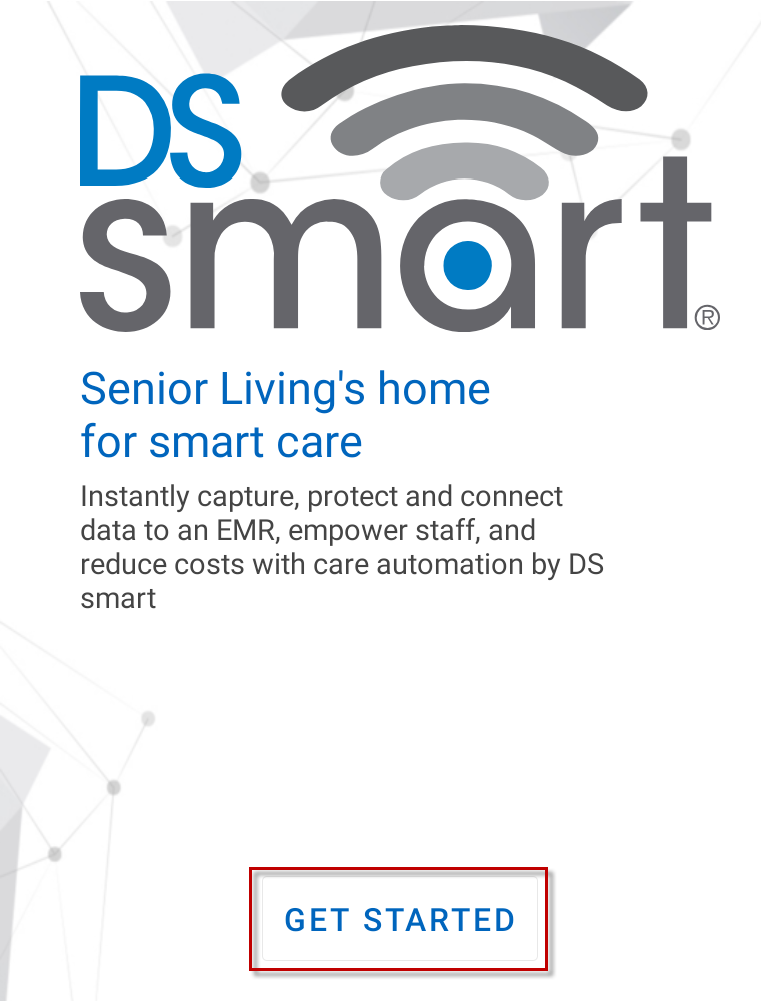
1. If you have not yet configured your tablet, when you start the DS smart application, you should be presented with the Get Started wizard.
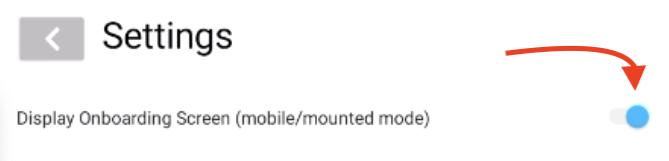
If you do not see the screen, select the Settings button on the home screen. Toggle Display Onboarding Screen. Select the back button.
You should now see the Get Started screen. |
 |
|
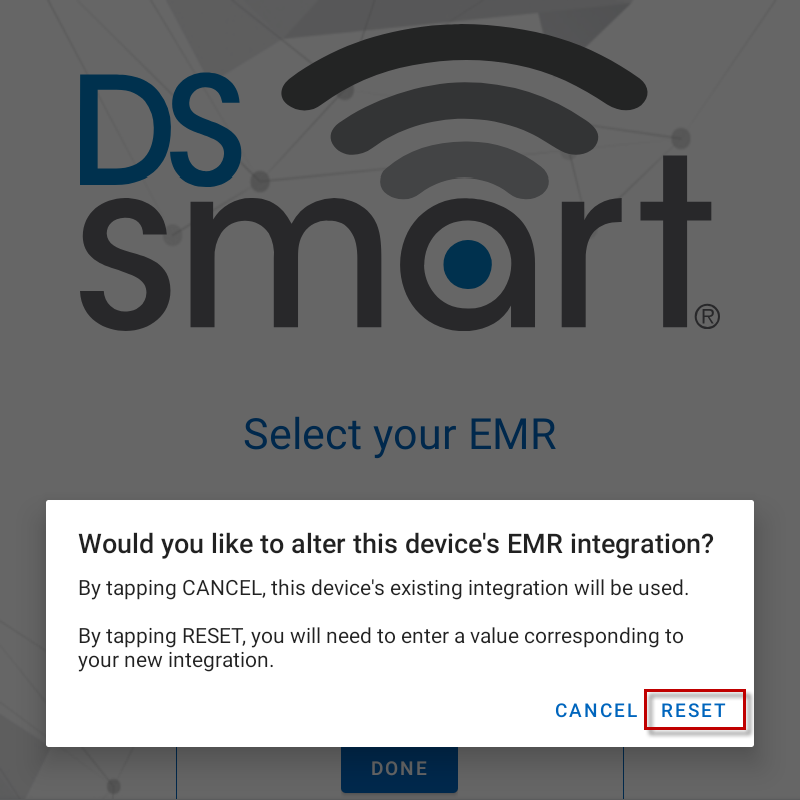
2. Select Reset to confirm you want to change the integration settings. |
 |
|
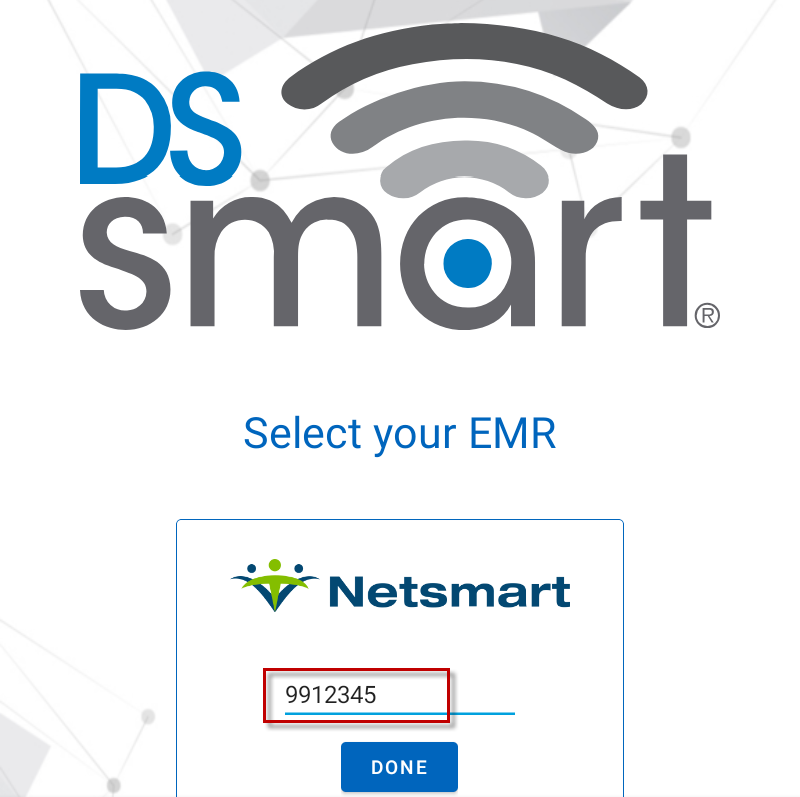
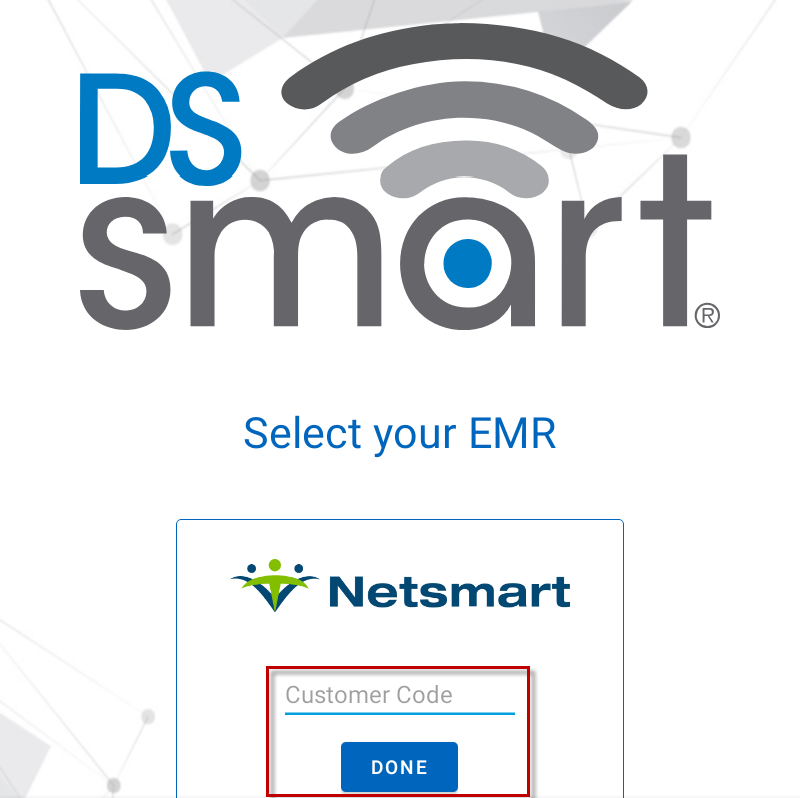
3. Navigate through to the EMR selection screen, and enter your Account Number, prefixed with "99". For example, if your account number is "12345," then enter "9912345". |
 |
|
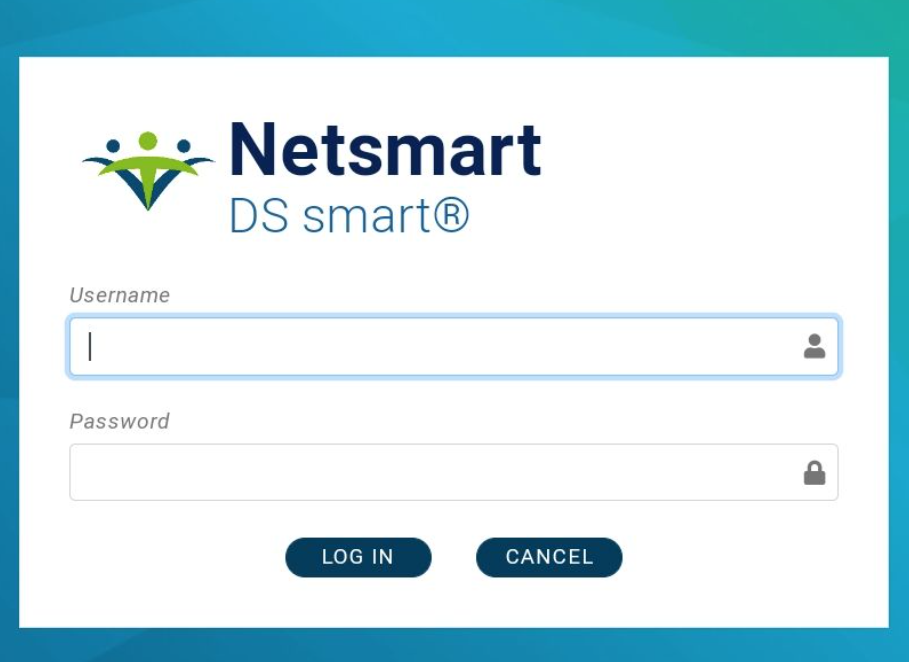
4. You can now log into your UAT environment. Your facility and resident list should be filled with UAT data. |
 |
|
5. Select a resident, take vitals and save to the EMR in the normal manner. Use for as long as needed in training mode; none of the vitals will be saved in a real medical record. |
|
|
6. When training is complete, log out of DS smart and again enter the Settings screen:
|
 |
|
7. Go through onboarding again. Instead of using the UAT account number (prefixed with "99"), enter your normal account number. Select Done. |
 |